SnapGen AI Video Generator

Create videos from text or photos in your browser. Choose a model and check the credits before generating.

Create my videoFeatures & pricing

THE VIDEO STUDIO, REIMAGINED

SnapGen AI Video Generator

Create videos from text prompts or photos with SnapGen AI. Choose a model, adjust supported settings, and check the credit cost before generating.

53 credits
Back to Home

Explore SnapGen AI: Features, Examples and Pricing

See video examples, learn how text and image generation work, and compare model controls and credit costs before creating.

02 / THE PROCESS

How to Generate AI Videos from Text or Images

SnapGen AI at snapgenai.io is a browser-based text-to-video and image-to-video tool. Follow these three steps to create and download a clip.

  1. Write a prompt or upload a photo

    Choose Text to video to describe a scene, or Image to video to upload a starting image. Specify one subject, one action and the camera movement you want.

  2. Choose a model and check credits

    Select a video model and its supported duration, resolution and aspect ratio. Review the credit cost before submitting. Generation requires sign-in and enough credits.

  3. Generate, preview and download

    Generate your clip, then review its motion and details before downloading. To try another version, change one part of the prompt and check the new credit cost.

AI Video Ideas for Stories and Social Content

Use SnapGen AI for the moments between an idea and a finished edit. These three scenes suggest different ways to give a story its own visual language.

01Cinematic storytelling

Open on a world beyond the everyday

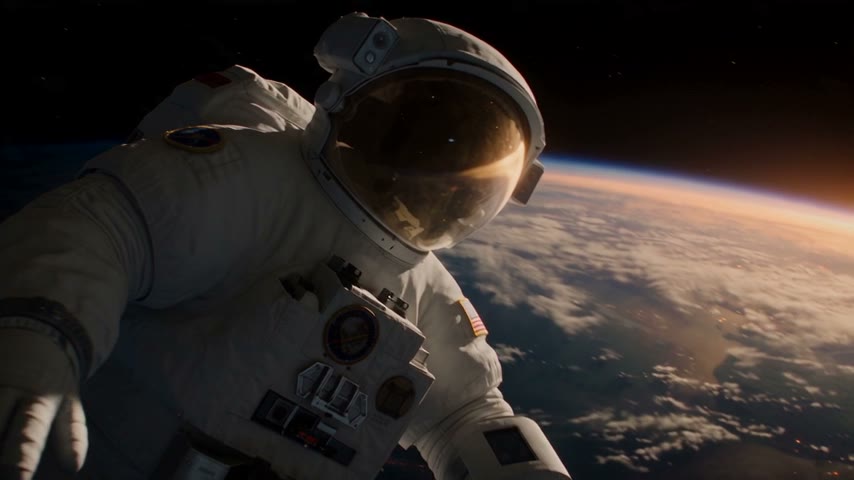
Open a story somewhere unexpected. With SnapGen AI, describe an astronaut above Earth, the angle of the camera, and the sunlight across the visor. Explore a short cinematic scene before deciding how it belongs in your larger story.

02Travel and landscapes

Give the scenery room to move

Let a landscape establish the mood. Guide SnapGen AI toward floating balloons, warm dawn light, and a gentle camera drift. A restrained shot can give a travel edit breathing room without competing with the story around it.

03Urban atmosphere

Set the mood before the story begins

Build an atmosphere from color and movement. Ask SnapGen AI for rain reflections, distant headlights, and a slow journey through the city. Review the clip as an opening or transition, then refine the light or pace for another version.

Control Your Video Model, Motion and Format

Create short clips from a prompt or starting image. Choose a video model, set the supported format, and review the result before using it in your project.

01

Text-to-video generation

Guide SnapGen AI with the subject, action, lighting, and camera movement. A focused description gives each short clip a clear creative direction rather than a collection of competing instructions.

02

Image-to-video generation

Bring a photo or illustration into SnapGen AI and describe what should move. The first frame guides the scene; review generated details carefully before using the result in a finished project.

03

Video models and settings

Choose from available models such as Wan, Veo, Seedance and Grok Imagine. Duration, resolution and reference-image support vary by model. The generator shows supported settings and the credit cost.

04

Credit cost before generation

SnapGen AI displays credits beside the generation button. Model, duration, resolution, and supported audio affect that amount. Adjust the settings before submitting and keep your creative experiments intentional.

AI Video Plans and Credit Costs

Use free daily check-in credits to generate videos, or buy more credits for your next project. SnapGen AI shows the exact credit cost before you generate.

View plans and credits

Free credits and paid plans

Sign in to claim daily check-in credits: 64 credits across seven consecutive days. Free generation is limited by your balance and selected settings. Compare one-time packs and subscription plans on the pricing page.

Choose settings within your budget

Check the quote for each model and setting combination. Shorter clips can help you explore an idea, but every new generation needs enough credits for its displayed cost.

Questions about SnapGen billing? Contact support@snapgenai.io before purchasing.

AI Video Generation: Frequently Asked Questions

Straightforward answers about creating, saving, and using videos with SnapGen AI.

Is SnapGen AI free to use?

Yes. Sign in and claim free daily check-in credits: 8 / 8 / 8 / 12 / 8 / 8 / 12, totaling 64 credits for seven consecutive days. Rewards never expire and can be used for video generation. You need enough credits for your chosen model and settings; free generation is not unlimited. Paid packs are available if you need more credits.

What can I create with SnapGen AI?

SnapGen AI generates short video clips from text or a starting image. Use the results as scenes for social edits, product concepts, visual stories, or creative experiments. It generates footage; assemble longer stories in your preferred editor.

How do I start with a photo?

Choose Image to video and upload PNG, JPEG or WebP images, each up to 4 MB. Some models accept multiple reference images: the generator shows the limit and combined upload allowance. Describe the motion and use images you have permission to upload and publish.

Which lengths and resolutions are available?

Duration, resolution and aspect ratio depend on the selected video model. Multiple reference images can restrict duration or format; the generator shows supported combinations and the credit cost before submission.

Will my video include sound?

Sound is enabled automatically for compatible models. Veo 2 produces silent video. Review both the picture and audio before downloading a clip to use in a project.

What if a generation fails?

When a task is confirmed as failed or canceled, the deducted credits are returned. A pending task or temporary connection error is not a confirmed failure. Contact support if your status or balance looks incorrect.

Are my videos saved forever?

Download results you want to keep because ordinary provider links may expire. Administrator-selected gallery videos are separately archived without automatic expiration. Generating a video does not automatically publish it.

Can I use the result commercially?

Commercial use depends on the model terms, applicable law, and rights in your input. We do not guarantee exclusive copyright or clearance of third-party rights. Review the result and relevant terms before publishing.

Where can I manage my subscription?

Open your SnapGen AI account settings to review billing and subscription options. Cancellation stops future renewals under your purchased terms. For a billing question or refund request, contact support with your order reference.

Product information maintained by · Last reviewed

Explore text-to-video and image-to-video creation, model controls, daily check-in credits and pricing. Available settings and credit costs are shown in the generator before you submit a request.

Report an error or contact support